AI Grid Assistant
1.0 Introduction
The AI Grid Assistant provides the user with an intuitive and easy to use chat window that allows you to filter and sort data, show, hide and resize columns or jump to a specific page. The AI Grid Assistant is available on any page that features a grid view, such as Controllers, Readers, Cardholders, Credentials, Transaction Reports and Live Events.
Note: Grid column and filter selections are applied to the operator login. This means the selections will still apply if the operator logs into Borealis on a different client workstation. To clear the selections and reset the grid, click the Reset Grid button.
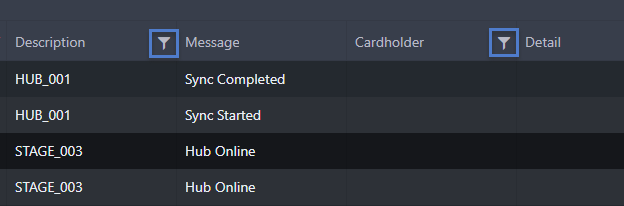
Note: The AI Grid Assistant will only allow you to define and retrieve filtered data for columns that display a filter icon.
2.0 Specify Which Columns To Display
The following example demonstrates how to use the AI Grid Assistant on the Readers screen to define which columns you wish to display.
- From the main menu, click on Hardware >> Readers.
- You will see that most of the available grid columns are displayed by default.
- Click the AI Grid Assistant button.
- The AI chat window will appear.
- In the text field at the bottom of the window, enter: 'Display only the Reader, Controller, Site and Hardware Type columns', or if the client PC has a microphone you can click the voice-input icon and speak the instructions into the text field.
- Click <ENTER> or click on the small, green Send icon.
- Within a few seconds the Readers screen will display data only for the columns you have specified.
3.0 Specify Filter Selections for Credentials
The AI Grid Assistant can also be used to quickly retrieve cardholders using specific criteria. In this example we will retrieve all inactive credentials which have no access rights.
- From the main menu, click on Credentials.
- The Credentials screen will appear.
- Click the AI Grid Assistant button.
- In the text field of the AI chat window, type in or use voice input to enter: 'Display inactive credentials with access rights of none'.
- Within a few seconds the Credentials screen will only display the credentials that match what you have specified.
4.0 Define Search Criteria for Transaction Reports
Additionally, you can use the AI Grid Assistant to retrieve event information for specific doors or specific cardholders:
For example, enter the following prompts:
- Display all events for cardholder named [cardholder name].
- Display all events for reader with description [reader name].
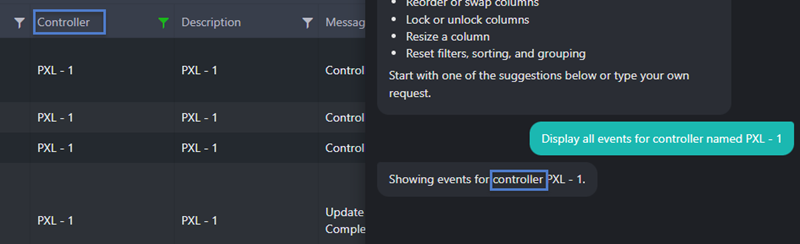
Note: When retrieving data, i.e., for cardholders, credentials and events from specific hardware, you should enter the name of the column exactly as it is defined in the user interface. So for a specific cardholder, include the word 'cardholder' because that matches the cardholder column name.
4.1 Retrieve Events for a Specific Controller
For a specific controller, enter the word controller before the controller name, as highlighted below.
4.2 Retrieve Events for a Specific Cardholder
This example demonstrates how to retrieve all access granted events for a specific cardholder:
Related Articles
Running Reports
1.0 How Do I Run Reports? It is very easy to run reports from within Borealis. Reports contain a historical record of system events and information about the location and time and date specifics. By default, for ease of use and efficiency the live ...